
COME Recharge and Withdrawal: Status Checks
Find which stage needs attention: the payment provider, your COME transaction record, or a withdrawal request. Keep the reference and use the corresponding Customer Center issue.
Already have COME? Open the app on your phone. Get login help →
On this page
Find the transaction before trying again
| What you see | What to check | Next action |
|---|---|---|
| Money left your payment app; COME balance did not change | Provider status, amount, time and UTR/UPI reference | Open Deposit Issues with the matching evidence |
| COME or provider says Processing | The existing transaction record | Check that record before making another attempt |
| Deposit failed or refund missing | The original provider’s record and reference | Match any refund with the failed payment; ask support if unclear |
| Withdrawal unavailable | Withdrawable balance and conditions shown in My Account | Review the displayed requirement or use Withdrawal Issues |
| Withdrawal pending / failed / not received | COME withdrawal record and destination | Use the matching withdrawal support category |
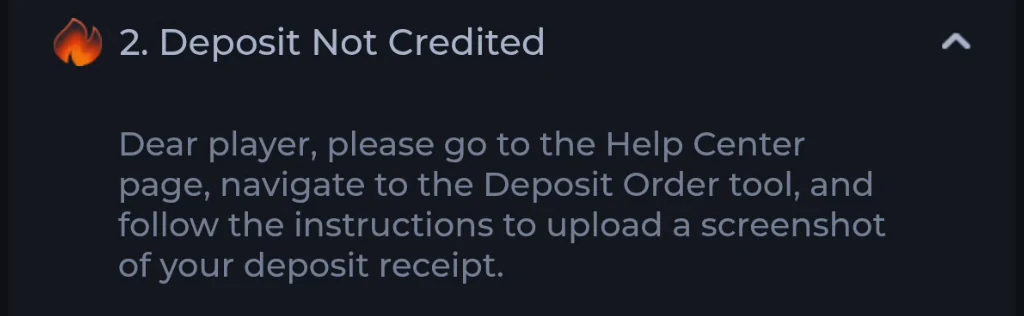
Recharge debited but not credited
The recorded Customer Center has Deposit Issues and a ticket form that requests a transaction reference and supporting screenshots. Use the UTR or UPI reference from the same payment, with its amount, date and final provider status.
For the Paytm flow shown in the project’s guide image, see the Paytm and UTR steps. A payment-app success message and a credited COME transaction are two separate confirmations.
 Tap to enlarge
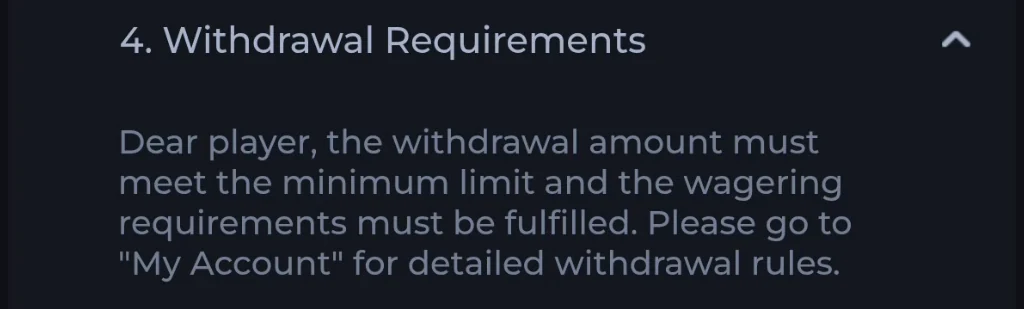
 Withdrawal requirements and pending requests
The recorded help refers to sufficient balance, a minimum withdrawal limit and wagering requirements, with the applicable details under My Account. It does not supply one numeric minimum or wagering multiplier valid for every account.
Use the current withdrawable amount and conditions, not a promotional balance. For a pending or failed withdrawal, keep the request’s identifier, time, destination and visible status.
 Tap to enlarge
 What the time estimates do and do not tell you
The supplied app help includes estimated processing language. These are interface statements, not measured completion guarantees. Network/provider conditions and the state of the individual transaction matter. This page does not promise a two-minute withdrawal or a universal refund deadline.
A Fantasy result issue belongs in match and settlement checks before treating it as a bank withdrawal failure.
Prepare one clear support ticket
Open Customer Center
Account menu → Contact CS → Customer Center.
Choose Deposit or Withdrawal Issues
Use the category for the stuck stage. Include the exact visible status.
Attach the matching evidence
Provide the transaction reference, amount, time and a relevant screenshot. Remove unrelated personal details from images.
Follow My Tickets
Track the same case and add the requested evidence. Do not post passwords, OTPs or a payment PIN.
Frequently asked questions
What is the minimum COME withdrawal?
The recording refers to a minimum and wagering conditions under My Account but does not show a universal numeric limit. Read the current account requirement.
Should I pay again if a deposit is still processing?
Check the original transaction and provider status first. A pending record should not be treated as a confirmed failed payment.
Where do I report a deposit not credited?
Use Customer Center → Deposit Issues with the matching UTR/UPI reference, amount, time and screenshot.
About the screenshots and rules
Account-help reference: supplied mobile Customer Center recording reviewed 8 September 2026; rechecked 10 September 2026.